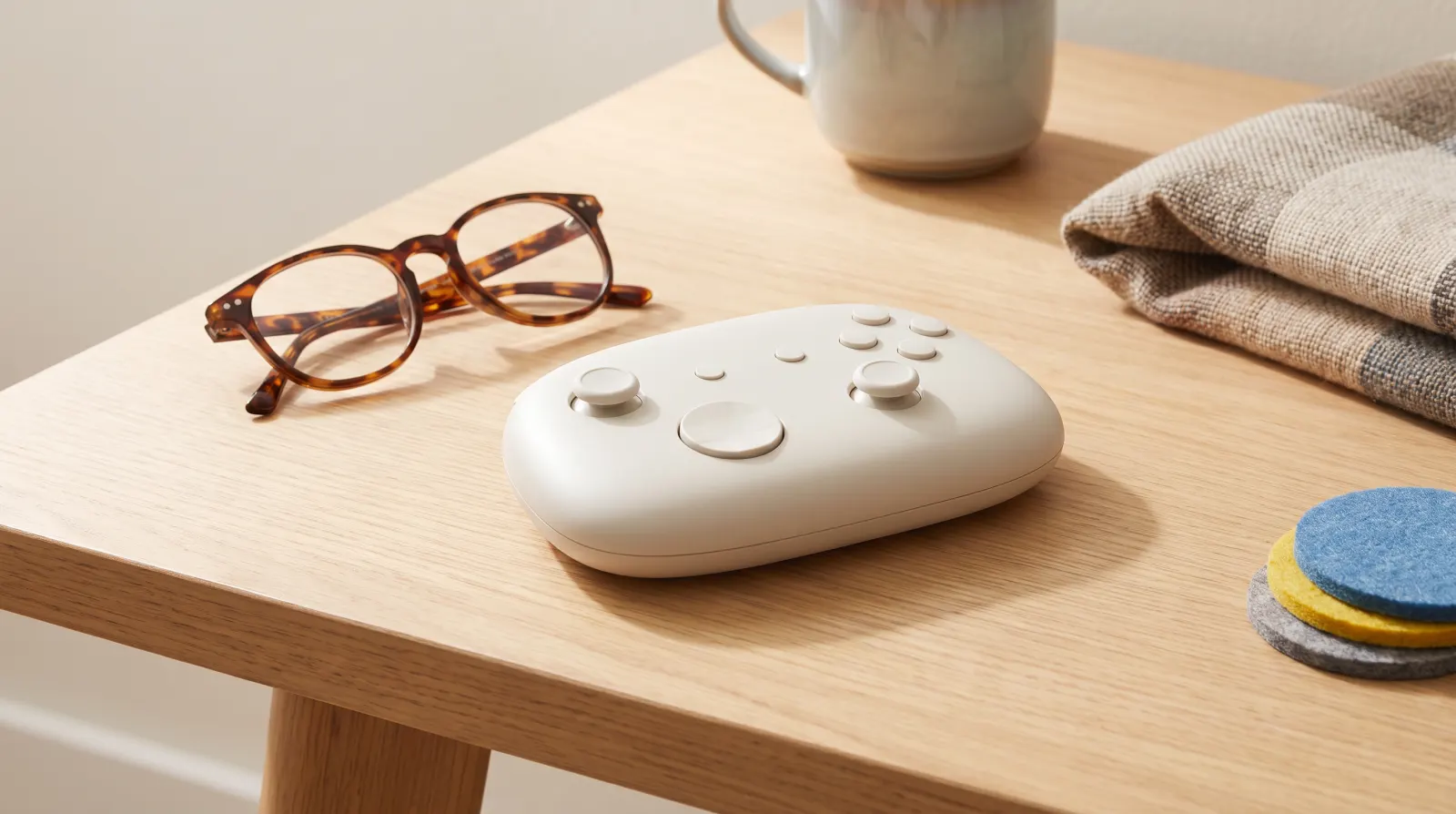
Accessibility options exist so that disabled players can play. They also happen to make games more comfortable for almost everyone: the tired, the busy, the new to games and the slightly short-sighted on a sofa a long way from the television. It is worth spending five minutes in the menu before you start any new game.
The exact options vary from game to game, and not every game has all of them. Here is what to look for.
Subtitles and text
- Subtitle size. The default is often small. Raising it is one of the most common and most useful changes.
- Background box. A darkened box behind subtitles makes them readable over bright or busy scenes.
- Speaker names and sound captions. Some games label who is speaking and caption important sounds, such as footsteps behind you.
- Interface scale. Some games let you enlarge menus and on-screen text as well.
Controls and remapping
Being able to move any action to any button helps players with limited reach or strength, and anyone with a stubborn habit from another game. Look also for:
- Hold or toggle. Changing "hold to sprint" or "hold to aim" into a single press can make a big difference over long sessions.
- Repeated presses. Some games let you replace rapid button-mashing with a single hold.
- Sensitivity and dead zones. Fine-tune how the sticks or mouse respond.
If a game lacks remapping, the major consoles offer system-level button remapping in their own settings, and on PC Steam can remap controller buttons for most games in your library.
Colour and contrast
Colour-blind modes usually adjust the colours of important elements, such as team markers or puzzle pieces, so that they remain distinguishable. Some games also offer high-contrast outlines for characters and interactive objects. If a game has neither, Windows and some consoles offer system-wide colour filters that apply to everything on screen.
Difficulty and assists
Lowering the difficulty is not cheating. It is choosing the experience you want. Many games now offer more than easy, normal and hard:
- Baldur's Gate 3 has a gentler Explorer difficulty for players who are there for the story and the choices.
- Terraria's Journey mode lets you adjust difficulty and other world rules as you go.
- Subnautica includes a gentler mode that switches off hunger and thirst, leaving you free to explore.
- Viewfinder lets you rewind at any time, which takes the sting out of experimenting.
Other common assists include aim help, slower game speed, skippable puzzles or fights, and extra hints. Use whatever makes the game enjoyable.
Motion and comfort
If games make you feel queasy, these settings are worth a look:
- Field of view. A wider view in first-person games helps many people.
- Camera shake and motion blur. Turning both off often helps straight away.
- Head bob. The gentle up-and-down movement when walking; often adjustable.
- A fixed on-screen dot. Some games can show a small centre marker, which some players find steadying.
Take breaks, play in a well-lit room and sit a sensible distance from the screen too.
Audio
Separate volume sliders for speech, music and effects let you bring dialogue forward. A mono audio option helps players with hearing in only one ear, and visual cues for sounds can replace audio entirely in some games.
Photosensitivity
Some games include warnings or options to reduce flashing effects. If you or someone you play with is sensitive to flashing lights, check the menu and the store page before starting.
A five-minute habit
Before you start a new game: open the settings, raise subtitles to a size you can read comfortably from your seat, check the controls, glance at the difficulty and comfort options, and get on with enjoying it. You can always change them later.
Read next: Planning a game night with friends: online or on the sofa, without the faff