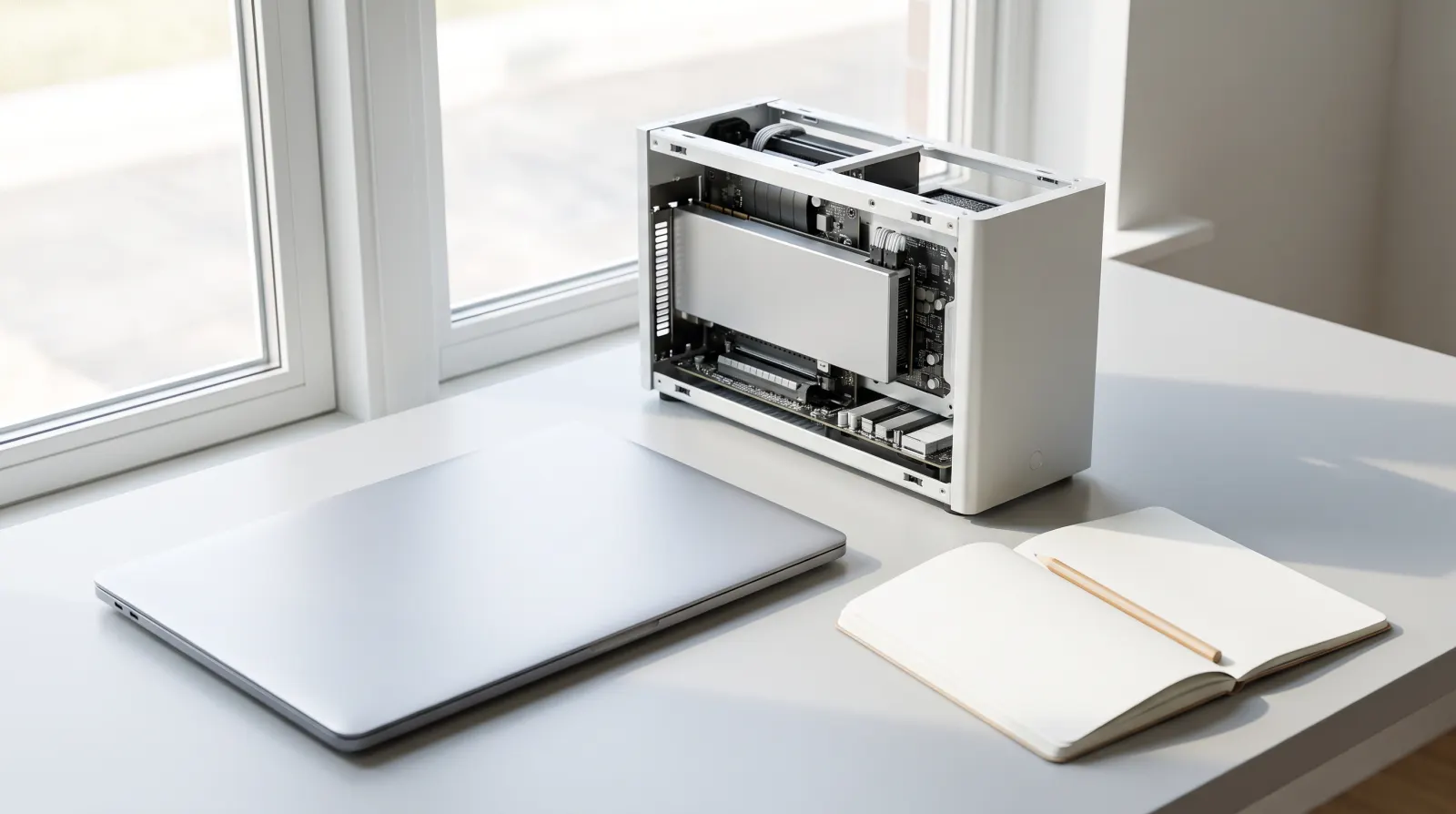
Every PC game lists its system requirements, usually in two columns near the bottom of the store page. They look precise. They are not. They are a developer's best guess at two points on a sliding scale, and learning to read them properly will save you from both disappointment and needless upgrades.
Minimum versus recommended
Minimum means the game will start and be playable, usually at low settings and a modest resolution. It rarely means pleasant. Recommended is the developer's idea of a good experience, often at medium to high settings at a common resolution. Some publishers add further columns for higher resolutions or for ray tracing; those are worth a glance if you have a high-end machine, and safe to ignore if you don't.
If your PC sits between the two columns, the game will almost certainly run. You will simply be making choices in the settings menu.
First, find out what you have
On Windows, the quickest route is to type System Information into the Start menu for your processor and memory, and to open Task Manager's Performance tab, which lists your graphics hardware and how much dedicated video memory it has. Write the three names down: processor, graphics, memory. That is most of what you need.
The graphics card matters most
For most games the graphics processor is the part that decides how a game looks and how smoothly it moves. Comparing models is easier than it seems: within one manufacturer's range, a higher model number in the same generation is generally faster, and a newer generation at the same tier is generally faster than an older one. When the listed card belongs to a different manufacturer from yours, look up a comparison in a recent independent review rather than guessing.
Two traps catch laptop owners in particular. First, a laptop graphics chip usually shares its name with a desktop card but is held back by power and cooling, so it tends to perform below its desktop namesake. Second, many thin laptops have integrated graphics built into the processor. These handle older and smaller games well, but demanding new releases are often beyond them. Our picks such as Unpacking or Terraria are far kinder to modest hardware than a large 3D role-playing game like Baldur's Gate 3.
Video memory, the overlooked line
Video memory (VRAM) is the graphics card's own memory, used for textures and other visual data. If a game wants more than you have, lowering the texture quality setting is usually the fix. It is one of the few settings that can cause stutter even when everything else seems fine.
Processor and RAM
The processor matters more in strategy, simulation and building games, where the computer is tracking lots of things at once. A sprawling base or a busy hospital in Two Point Hospital leans on it more than a quiet puzzle game does.
System memory (RAM) is simpler: meet the listed figure. If you have less than the minimum, expect long loads and stutter whatever your graphics card. Closing browser tabs and other programmes before you play genuinely helps on machines near the limit.
Storage: size and speed
Check the listed install size, then leave room on top of it for updates, which can be large. More and more games now list an SSD as required rather than simply recommended. On a traditional hard drive they may still install, but expect slow loading and textures that pop in late. If you have both kinds of drive, put your games on the SSD.
The settings that buy you the most
- Resolution and upscaling. Rendering fewer pixels is the biggest single saving. Many modern games include an upscaling option that renders at a lower resolution and sharpens the result; it is usually the first thing worth switching on.
- Shadows and volumetric effects. Often expensive and hard to notice when lowered a notch.
- Textures. Match these to your video memory, not your ambition.
- Frame rate cap. A steady lower frame rate feels better than one that jumps about, and it keeps a laptop cooler and quieter.
Laptop-specific habits
Plug in before you play: many laptops slow their graphics down considerably on battery. Check that Windows is set to a performance-oriented power mode, keep the vents clear of duvets and cushions, and make sure your graphics drivers are current.
When in doubt, use the refund window
Even a careful reading can't predict everything. If a shop's refund policy allows it, a short test session soon after buying is the most reliable benchmark there is. Our guide to digital refunds in the UK explains what to look for before you rely on that.
Read next: Early access explained: when an unfinished game is worth your money